
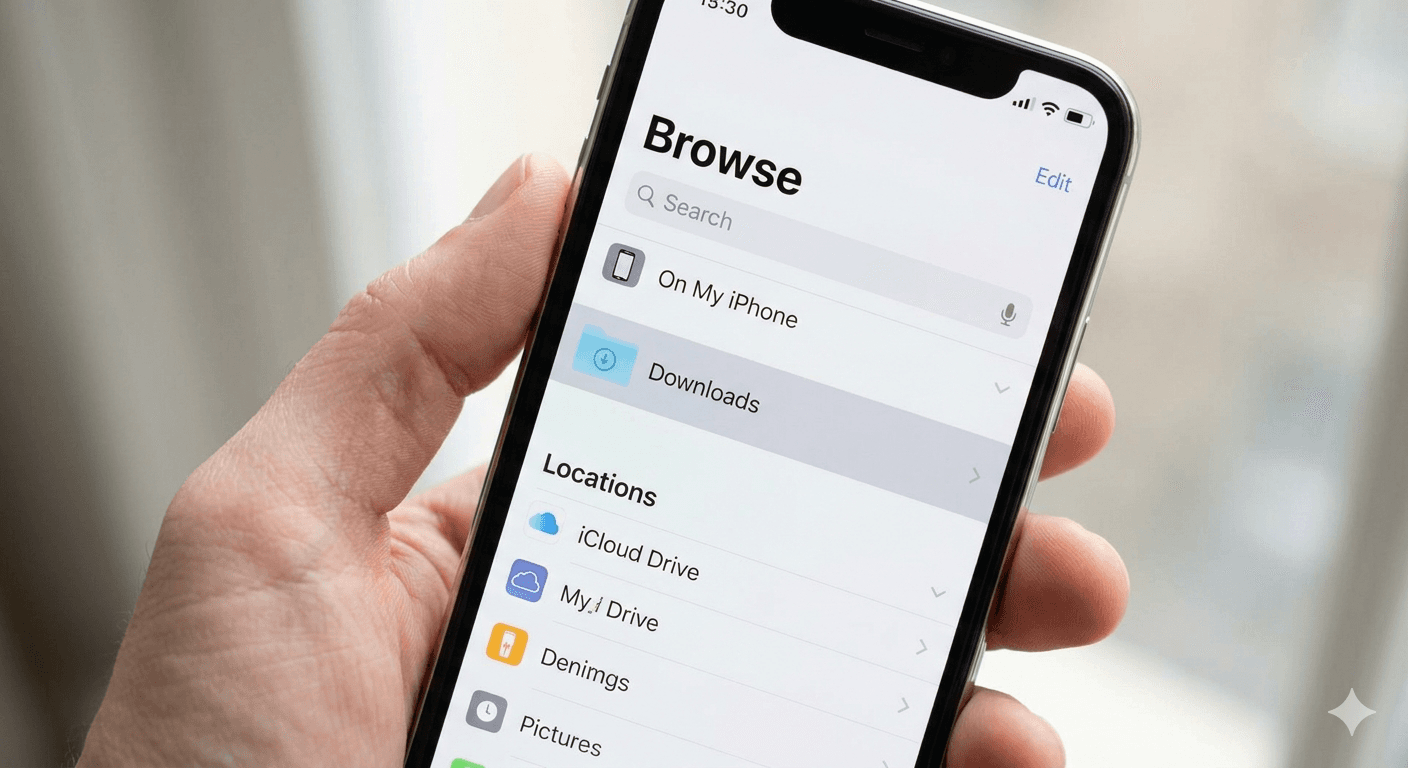
Have you ever downloaded a PDF, a funny image, or even a custom ringtone on your iPhone, only to find yourself immediately asking: "Where did that file go?"
You're not alone. Unlike a desktop computer, where a "Downloads" folder is often staring you in the face, the iPhone handles file storage in a more segmented way. Knowing how to find downloads on your iPhone depends entirely on what you downloaded and which app you used.
This guide will walk you through every scenario, answering all your common questions about locating files on iOS.
1. The Hub for Most Files: The 'Files' App
The primary location for general downloads (documents, PDFs, zip files, and saved images from browsers) is the Files app. If you are wondering where are my downloads on my iphone, this is the first place you should check.
Introduced a few years ago, the Files app is Apple's native file management solution.
How to access downloads in the Files App:
- Open the Files app: It looks like a blue folder on a white background.
- Navigate to the 'Browse' tab: This is usually in the bottom-right corner.
- Find 'Locations': You should see sections for "iCloud Drive" and "On My iPhone".
- Check both locations:
- On My iPhone: This is where local files, often saved directly from apps or Safari, reside. Tap it, and you will typically see a dedicated Downloads folder.
- iCloud Drive: If you have optimized storage or specifically saved a file to iCloud, it may be here. Many apps default to saving in an "iCloud Drive -> Downloads" directory.
2. Locating Downloaded Ringtones (The Exception)
If you've downloaded a custom ringtone (usually an .m4r file), you will not find it in the Files app with your PDFs. iOS stores ringtones in a secure section accessible only through the Settings menu.
How to find downloaded ringtones on iPhone:
To find and set downloaded ringtones on iphone, follow these specific steps:
- Open 'Settings'.
- Scroll down and tap 'Sounds & Haptics'.
- Tap 'Ringtone' (or Text Tone).
- Look at the top of the list: Your custom, downloaded ringtones will appear above the standard default list, sometimes under a subtle separator.
If you cannot see your downloaded tone here, it's possible it wasn't successfully imported via a computer or a specialized app (like GarageBand).
How to see Safari downloads:
- Look next to the Address Bar: In the top-right corner of the Safari interface (or the bottom, depending on your layout), you will see a small circle with a downward-pointing arrow (the Download icon). This icon only appears when you have downloaded something recently.
- Tap the icon: A dropdown menu will list your recent downloads.
- Find the location: Tap the magnifying glass icon next to any filename in that list. Safari will immediately open the Files app and take you directly to the exact folder where that download is stored. This is the fastest way to view downloads on iphone.